How to create a professional cover (without being a designer)
Updated on August 10, 2026 · 6 min read
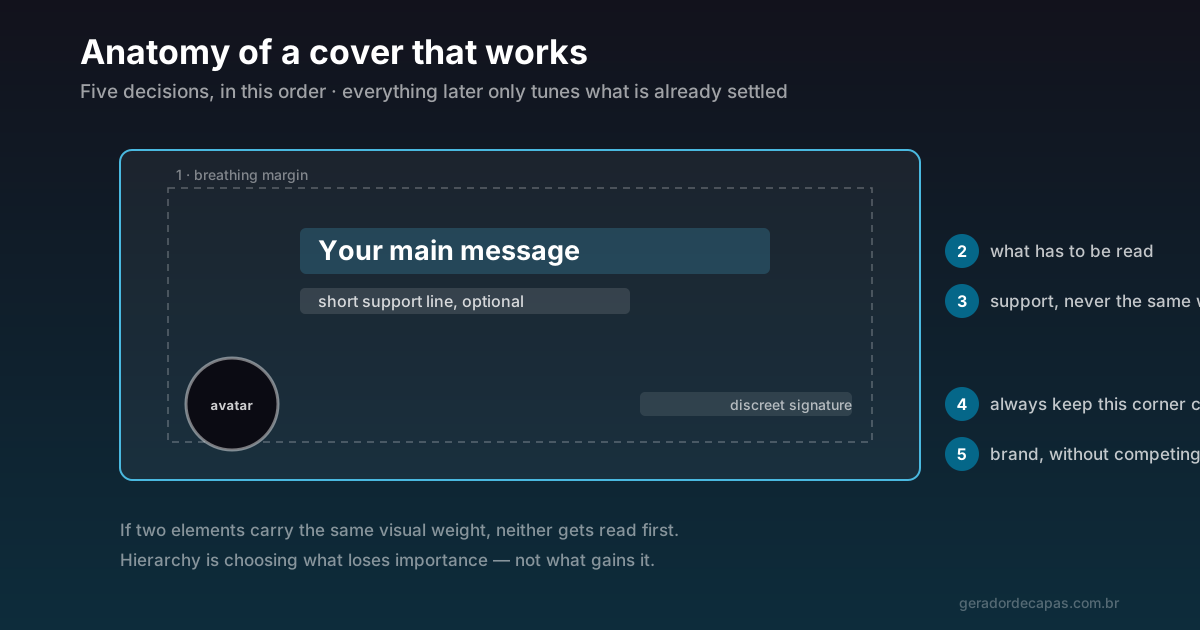
There is a clear difference between a cover that looks professional and one that looks rushed — and it almost never comes down to the artistic talent of whoever made it. It comes down to a handful of technical decisions anyone can make, provided they know which ones and in what order.
This guide is that method. Seven steps, in the order that actually matters. Follow them from first to last and the result will be consistent even if you have never opened a design program.
What separates professional from amateur
Before the steps, it is worth understanding the criteria. A cover reads as professional when it does four things at once:
- Hierarchy: it is obvious what to read first.
- Contrast: the text separates from the background effortlessly.
- Breathing room: nothing touches the edges or feels cramped.
- Coherence: colours and typefaces match the rest of your communication.
Notice that none of these requires creativity. All of them require a decision. An amateur cover is usually not ugly — it is undecided: four messages at the same size and no priority.
Step 1: settle on one message
Write, in one sentence, what the cover has to communicate. If you wrote two sentences, pick one. If you cannot pick, the cover will not manage either — and whoever looks will absorb neither.
This is the step most people skip and the one that most determines the outcome. Everything else follows from it.
Step 2: choose the right format
Every network has its size, and using the wrong one stretches or crops the image. Facebook, LinkedIn and Twitter/X have quite different ratios — the full table is in the size guide.
In the maker, just select the format: it already works at the correct ratio, which removes any chance of a sizing mistake.
Step 3: build the hierarchy
Hierarchy means deciding what loses importance. In practice, set three levels:
- Primary: the message from step 1. It should be the largest element by a clear margin — not 20% larger, but two or three times larger than the rest.
- Support: a short complement, if one is needed. Smaller and more restrained.
- Signature: website or brand, at the smallest readable size.
If two elements carry similar visual weight, the eye does not know where to start and ends up reading neither. A large size difference is not excess: it is what makes reading automatic.
Step 4: guarantee contrast
Contrast decides whether the text gets read on a small screen, in sunlight, in half a second of scrolling. Two rules are enough:
- Difference in lightness, not just in hue. Yellow text on a white background uses different colours and has terrible contrast.
- A controlled background behind the text. If you use a photo, darken the area where the text sits or place a solid band behind it. A raw photo behind type is the most common recipe for illegibility.
The test: squint until the image blurs. If the text disappears, the contrast is insufficient.
Step 5: choose typography with restraint
Two typefaces at most — and one usually solves it, varying only the weight between bold and regular. Prefer clean shapes that stay readable when reduced.
Decorative, script or very thin typefaces can look beautiful at large size on a desktop screen and turn into a smudge on a phone. If the cover has text that must be read, legibility beats style.
Step 6: leave breathing room
A generous inner margin is the detail that most separates professional from improvised. No text touching the edge. As a reference, reserve at least 5% of the width as clear margin on each side.
And remember the bottom-left corner: on practically every network, that is where the profile photo or logo sits, covering the cover. That corner is off limits.
Step 7: export and test
Download at high resolution — never smaller than the official size, because enlarging only blurs. Then publish and run two tests:
- The phone test: open the profile in the app, not on desktop. That is where most people will see it.
- The distance test: step a metre back from the screen. If the main message still reads, it is sorted.
A worked example
Suppose a nutritionist wants a LinkedIn cover. Here is how the seven steps play out.
Step 1. The first draft of the message is "Nutritionist | Weight loss | Sports nutrition | Online consultations". That is four messages, not one. After choosing, what remains is: "Sports nutrition for runners". It lost reach and gained memorability — which is what a cover needs.
Step 2. A personal profile banner, so 1584 × 396 px. Not the company page size.
Step 3. The chosen line is the primary element, large. Below it, much smaller, the website. Nothing else. Two levels are enough.
Step 4. A solid dark background with white text. Contrast solved without having to treat a photo.
Step 5. One typeface: bold for the line, regular for the website.
Step 6. Everything shifted to the right of the banner, because the bottom-left corner belongs to the profile photo. Generous margin all around.
Step 7. High-resolution download, publish, check on a phone.
Notice that no step involved a difficult aesthetic decision. The hardest part was cutting three of the four original messages — and it always is.
Final checklist
- Is there a clear primary message?
- Is it much larger than everything else?
- Does the text stand out from the background when you squint?
- Are there at most two typefaces?
- Is there margin on every side?
- Is the bottom-left corner clear?
- Did the file come out at the official size or larger?
Seven yeses and you have a professional cover. To check what usually goes wrong before publishing, read about the most common cover mistakes.
Frequently asked questions
Do I need design skills to make a good cover?
No. The four criteria that make a cover look professional — hierarchy, contrast, breathing room and coherence — are objective decisions, not artistic talent. Following the steps in order solves most of the problem.
How many typefaces can I use on a cover?
Two at most. In practice, a single family alternating between bold and regular already creates enough hierarchy and reduces the risk of a disorganised composition.
Can I use a photo as the cover background?
Yes, as long as you control the text area. Darken the region where the letters sit or place a solid band behind them. An untreated photo behind text is the most common cause of an unreadable cover.
What is the minimum font size for a cover?
There is no universal number, because it depends on the format. The practical criterion is proportional: if the main text occupies less than a tenth of the cover height, it is probably too small for mobile.
How long does it take to make a cover?
With the message already settled, a few minutes in a tool that works at the correct ratio. The real time usually goes into step 1 — deciding what to say.
Should I put the logo on the cover if it is already the profile photo?
Usually not worth it. The profile photo overlaps the cover, so the logo is already visible right there. Repeating it consumes the most valuable space in the image without adding information. Use that area to say what you do, and let the brand show through colour and typography.
How do I make the same cover work across several networks?
Keep the palette, typeface and line fixed, and recompose the layout at each ratio. Start with the shortest format you use: if the message fits there, it fits everywhere else. Reusing the same file across different ratios always results in cropping or distortion.
Start your cover now
Free, no sign-up, high-resolution download.