Facebook cover for business: size, safe area and what to avoid
Updated on August 10, 2026 · 6 min read
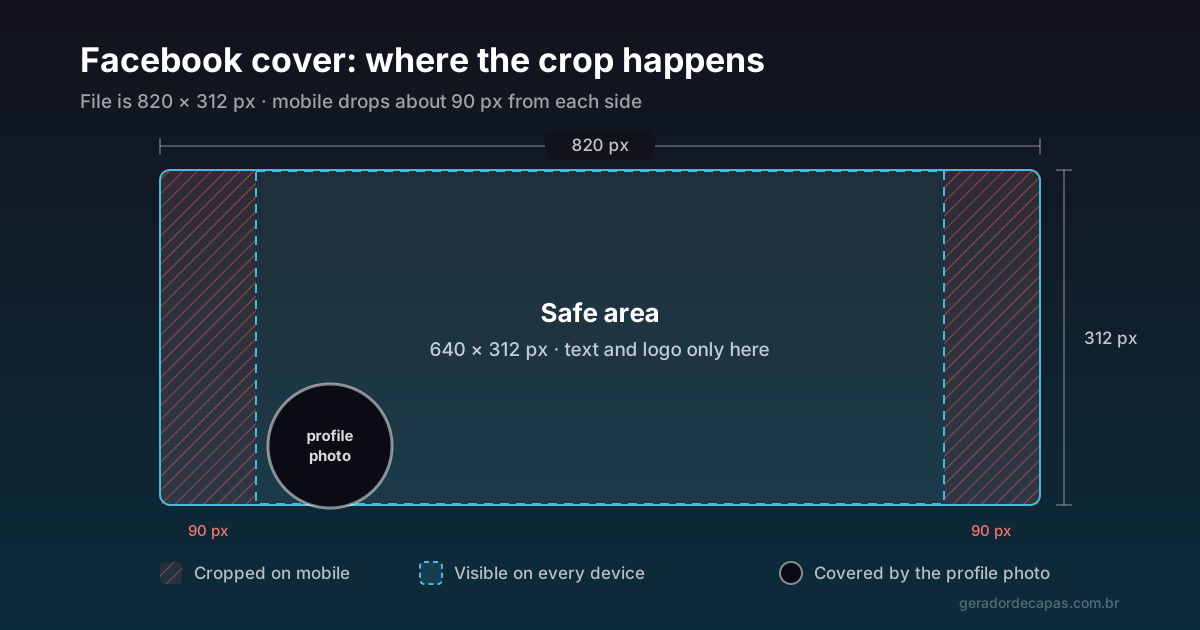
The cover on a Facebook page is the largest piece of free visual space your business has on that network. It appears before the name, before the description and before any post. Even so, it is common to see pages with the cover sliced through the middle of a word, the phone number hidden behind the profile photo, or an image so blurry that it does more harm than good.
The problem is almost never bad taste. It is missing information about how Facebook actually displays that image. This guide fixes that. You will see the correct dimensions, exactly where the image gets cropped, what is worth putting on it, what to avoid, and a final checklist to run before publishing.
The correct size (and why it misleads)
A Facebook page cover is displayed at 820 × 312 pixels on desktop. On mobile the space changes: the display becomes roughly 640 × 360 pixels. Notice that this is not simply smaller — the ratio changes. The image becomes narrower and taller.
In practice, Facebook discards about 90 pixels from each side of your cover when someone opens the page in the app. And since most Facebook traffic comes from mobile, it is the mobile crop that should drive your design — not what you see on a desktop screen while creating the image.
| Where | Area displayed | What happens |
|---|---|---|
| Desktop | 820 × 312 px | Shows the whole cover |
| Mobile | ≈ 640 × 360 px | Crops ≈ 90 px from each side |
| Fully safe area | 640 × 312 px (centre) | Visible on any device |
The conclusion is simple and worth more than any styling tip: your file is 820 px wide, but you can only count on the middle 640 px. The edges are for visual breathing room, texture and gradient — never for information.
The three places covers break
1. The sides disappear on mobile
This is the crop that ruins the most covers. That tagline aligned to the left, perfect on desktop, simply vanishes halfway in the app. If the text has to be read, it belongs in the centre.
2. The profile photo covers the bottom-left corner
The page profile photo sits on top of the cover, in the bottom-left corner, on both desktop and mobile. Anything you place there will be partly hidden. It is the classic spot where people put the logo — and then wonder why it disappeared.
3. Action buttons compete at the bottom
Buttons like "Send message" and "Learn more", plus the page name itself, occupy the lower region. Text pressed against the bottom competes visually with that interface and usually reads as clutter.
Put the three together and the genuinely prime area of your cover is the centre, slightly above the midpoint. That is where the main message belongs.
What to put on the cover
The cover is not a billboard for listing everything the company does. It gets less than two seconds of attention. Pick one goal:
- A one-line value proposition. What you do and for whom, in six or seven words. "Accounting for medical clinics" says more than any generic handshake photo.
- Proof of credibility. Years in business, number of clients served, a relevant certification. Works well for services where trust drives the decision.
- A campaign or seasonal message. A launch, a specific date, a time-limited offer. Just remember to swap it when it ends — an outdated cover reads as an abandoned page.
- Pure visual identity. Brand colour, graphic pattern, texture. The right call when the company name already explains the business and you only want to reinforce recognition.
- A direct contact. Phone or website, as long as it is large enough to read on mobile and positioned in the centre.
What to avoid
- Small text. The cover is seen on a screen a few centimetres wide. If you have to lean in to read it, it is too small.
- Too much information. Phone, email, address, website, social handles and a tagline in one image become noise. None of it gets read.
- A stretched photo. Distorting an image to fit the ratio is the most noticeable flaw and the easiest to avoid: pick a photo that is already panoramic.
- Low-resolution images. Enlarging a small photo to 820 px wide produces that blurred look that undermines any sense of professionalism.
- Insufficient contrast. Light text on a light photo is unreadable. If you must use a photo, darken the area behind the text or place a solid band behind it.
- Information near the edges. Back to the main point: the sides do not exist on mobile.
Step by step
- Decide the single message. Before opening any tool, write in one sentence what the cover has to communicate. If you cannot summarise it, the cover will not manage either.
- Pick the Facebook format in the maker. It already works at the 820 × 312 px ratio, so there is nothing to calculate.
- Write short, centred text. A headline of a few words; if there is a second line, make it a complement, not a new sentence.
- Set the structure colours to your brand colours. Consistency between the cover and the rest of your communication is worth more than loose creativity.
- Check the contrast. Squint until the image blurs: does the text still stand out? If it vanishes, increase the difference in lightness.
- Download at high resolution and publish. Then open your page on your phone — not just on desktop — and confirm nothing important was cropped.
Checklist before publishing
- Is the main text inside the central 640 px?
- Is the bottom-left corner clear for the profile photo?
- Can you read everything with the phone at arm's length?
- Do the colours match the rest of your visual identity?
- Is the image sharp, neither stretched nor pixelated?
- If it is a campaign, is there a date to replace this cover?
Six yeses and you can publish with confidence. And when adapting the same idea to other networks, check the cover size guide — every platform crops the image differently.
Frequently asked questions
What is the ideal Facebook cover size in 2026?
Use 820 × 312 pixels. Desktop shows the whole image at that size; mobile displays roughly 640 × 360 px, cropping about 90 px from each side. That is why important information belongs in the central 640 px.
Do page covers and personal profile covers use the same size?
No. A business page cover displays at 820 × 312 px, while a personal profile cover appears at 851 × 315 px. The ratios are similar, but it is worth building each one at its own size.
Why does my cover look cropped on mobile?
Because the app shows a narrower, taller area than desktop, discarding about 90 px from each side. If your text was aligned to the edges, it disappears. The fix is to keep everything that must be read in the central band.
Can I put my logo on the cover?
You can, as long as it is not in the bottom-left corner, which is covered by the profile photo. Since the profile photo is usually the logo already, repeating it on the cover is often wasted space — use that area for your value proposition instead.
How often should I change the cover?
If it is pure visual identity, it can stay indefinitely. If it announces a campaign, promotion or specific date, decide upfront when you will replace it: an expired cover makes a page look abandoned.
Make your Facebook cover now
Free, no sign-up, high-resolution download.